Textures
The Textures section lists the images used in your blend file. Here you can find missing files, reload and relink textures, pack and unpack them, and see where each texture is used.
It is right under the material actions. See the Interface Overview. When expanded, it has two parts.
- Texture tools. Cleanup buttons, scope, filter, display mode and search.
- Texture list. One row for each image.
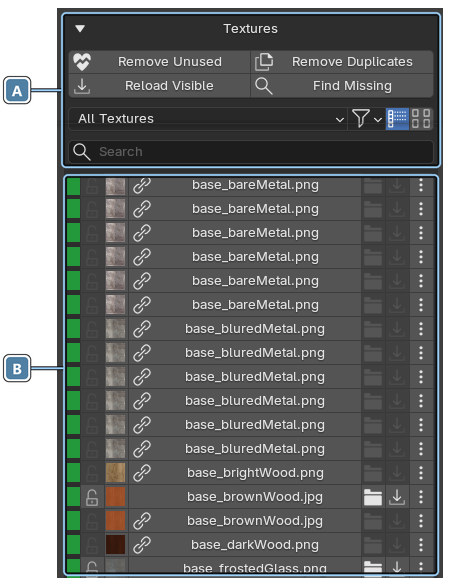
ATexture tools
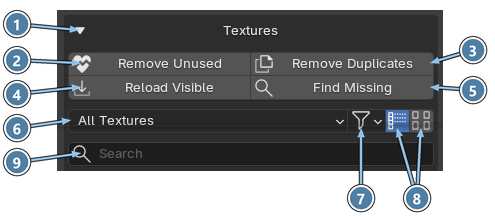
- Section header. Click to expand or collapse the section. It is collapsed by default.
- Remove Unused. Removes textures that are not used in the project. Textures protected by Fake User are kept.
- Remove Duplicates. Finds textures that use the same file, keeps one of them, switches everything to it and removes the copies.
- Reload Visible. Reloads all textures visible in the list from their files.
- Find Missing. Searches a folder and its subfolders for missing textures. See Find missing textures.
- Scope. All Textures shows every texture in the file. Selected Material shows only textures of the material selected in Material Manager.
- Filter. All, Missing (missing files and loading errors) or Unused.
- Display mode. List or Gallery.
- Search. Filters textures by name.
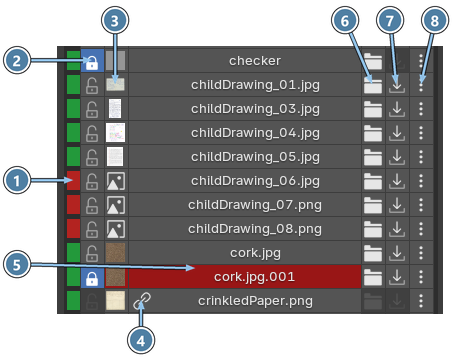
BTexture row
- Status. Green means the file was found. Red means the file is missing or could not be loaded. Hover over it to see the details.
- Fake User. Protects the texture from Remove Unused.
- Thumbnail. A small preview of the image. An image icon instead of a picture means the file could not be loaded.
- Linked. A chain icon means the texture comes from a linked blend file. Its file cannot be changed here, so the file and reload buttons are dimmed.
- Name. Click to show a larger preview. A red name means the texture is not used anywhere in the project.
- Choose Texture File. Selects a new source file for the texture. For packed textures this button becomes Unpack.
- Reload Texture. Reloads the texture from its file.
- Texture Actions. More actions: Texture Usage and Pack or Unpack.
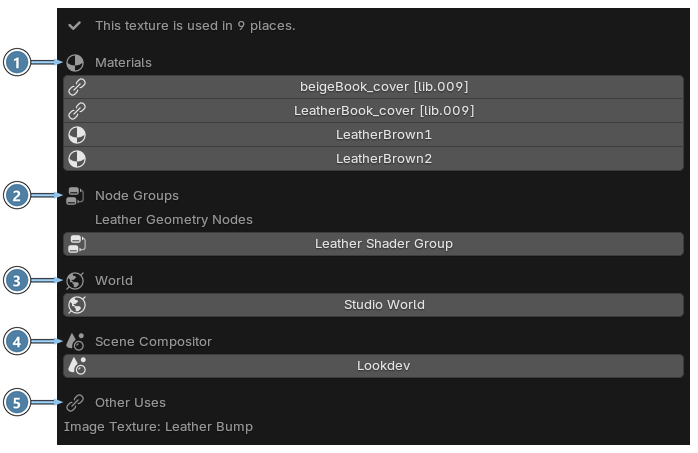
Texture Usage
Texture Actions › Texture Usage shows every place where the texture is used, grouped by type.
- Materials. Click a material to select it in the Material List. If the Shader Editor is open, the texture node is shown there.
- Node Groups. If the Shader Editor or Compositor is open, click a group to show the texture node there.
- World. If the Shader Editor is open, click the world to show its texture node.
- Scene Compositor. If the Compositor is open, click the scene to show the texture node.
- Other Uses. Other data that uses the texture.
Pack and unpack
- Pack Texture into .blend embeds the texture in the blend file. Save the blend file to keep the packed data.
-
Unpack Texture writes the texture back to disk. You can choose:
- Use file from current directory. Saves the file to the
texturesfolder next to the blend file. Save the blend file first. - Use file in original location. Saves the file to its original path.
If a file with the same name already exists there, Material Manager asks whether to use that file instead of the packed texture.
- Use file from current directory. Saves the file to the
Find missing textures
- Click Find Missing.
- Choose a folder. Material Manager searches it and all its subfolders.
- Textures are matched by file name, so it does not matter where the files were before.
- If several files match one texture, you choose the right one. Use Back to return to the previous texture and change your choice.
- Confirm to restore the found textures.
Tip
Set the Filter to Missing first to see which textures need to be found.