Opening the Manager
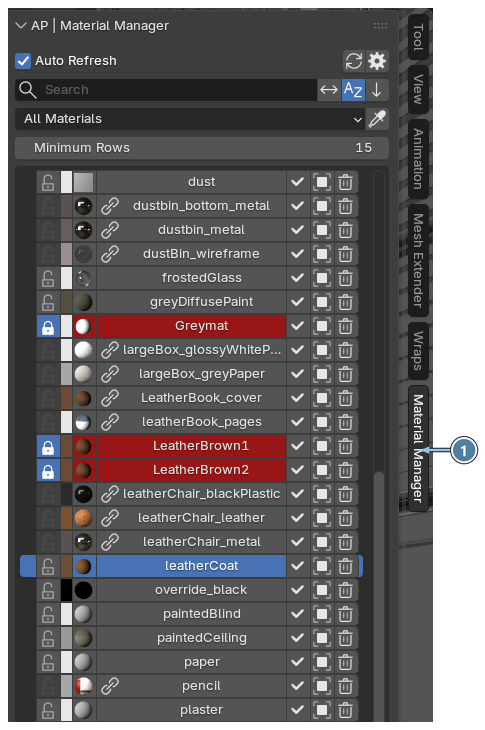
Material Manager can be open in two places: as a tab in the 3D View sidebar, or as a popup under the mouse cursor.
- Sidebar. Click the Material Manager tab in the sidebar, press Ctrl+Shift+Alt+M, or choose Window › Toggle Material Manager Sidebar.
- Popup. Press Shift+Alt+M.
Sidebar
- Press N in the 3D View to show the sidebar, then click the Material Manager tab.
Instead of clicking the tab, you can:
- Press Ctrl+Shift+Alt+M. This opens the sidebar on the Material Manager tab. Press it again to go back to where you were: if the sidebar was closed, it closes again. If another tab was open, that tab comes back.
- Choose Window › Toggle Material Manager Sidebar in the top bar of Blender. It works the same way as the hotkey.
You can rename the tab or move the panel into another tab in the Preferences.
Popup
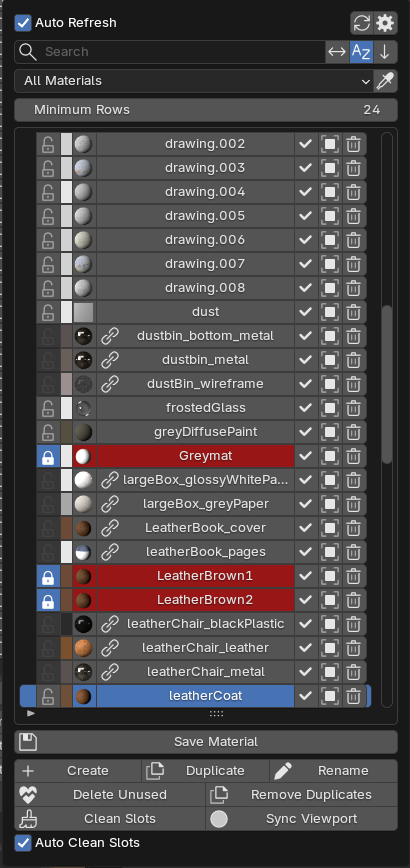
Press Shift+Alt+M to open the popup under the mouse cursor.
The popup shows the material list and the buttons under it. It works the same way as the Material List in the sidebar. Use it for quick one-off actions: assign a material, select the faces or objects that use it, and get back to work without opening the sidebar.
The height of the list is set by the Minimum Rows field at the top of the popup. The popup keeps its own value, separate from the sidebar. The width of the popup is set in the Preferences.
Click outside the popup or press Esc to close it.
Changing the hotkeys
Both hotkeys can be changed in the Preferences.