Preferences
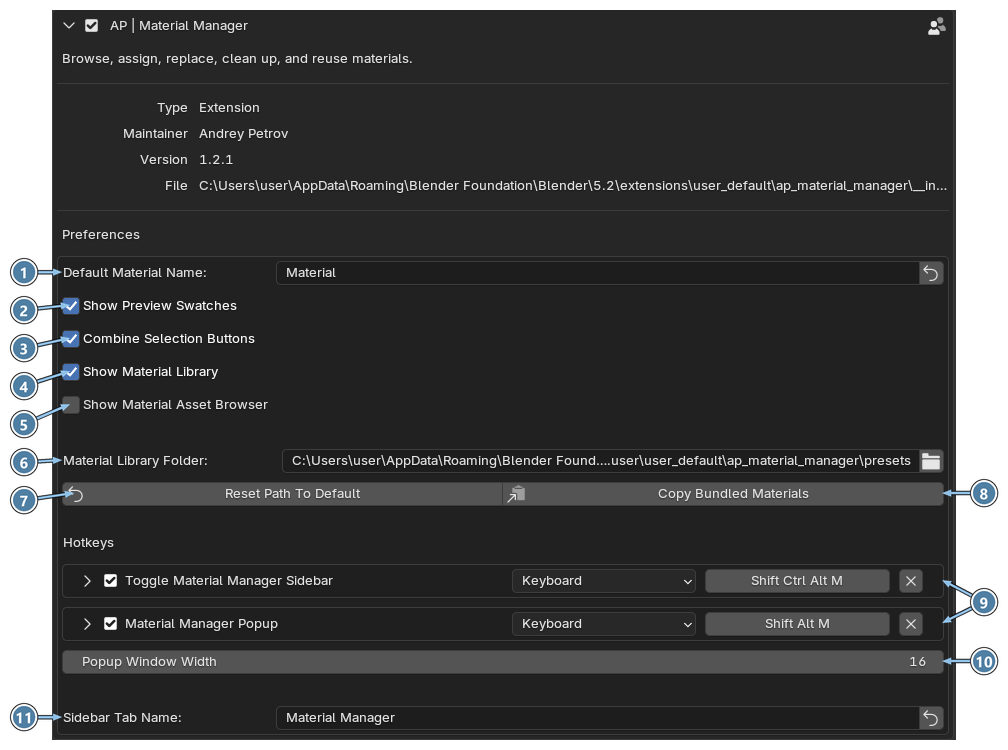
Open Edit › Preferences › Add-ons, find AP | Material Manager and expand it. You can also click the Preferences button (gear icon) at the top of the Material Manager panel.
- Default Material Name. The base name for new materials.
- Show Preview Swatches. Color swatches in the material list.
- Combine Selection Buttons. One button for selecting objects and faces.
- Show Material Library. The add-on's own preset library.
- Show Material Asset Browser. Materials from Blender Asset Libraries.
- Material Library Folder. Where your presets are stored.
- Reset Path To Default. Goes back to the default library folder.
- Copy Bundled Materials. Copies the presets that come with the add-on into your folder.
- Hotkeys. Shortcuts for the sidebar and the popup.
- Popup Window Width. Width of the popup.
- Sidebar Tab Name. The sidebar tab that shows the panel.
Interface
Default Material Name
The base name for new materials created with Create. Default: Material. The arrow button on the right restores the default.
Show Preview Swatches
Shows the Viewport Display Color of each material as a swatch in the material list. Default: on.
Combine Selection Buttons
Combines Select Objects and Select Faces into one button. Click selects objects, Ctrl-click selects faces. Default: off.
Show Material Library
Shows the add-on's own Material Library and the Save Material button. Default: on.
Show Material Asset Browser
Shows the Material Asset Browser section for materials from Blender Asset Libraries. Default: off.
Material Library Folder
The folder of the Material Library. By default it is the extension's user data folder. It is kept when you update the add-on, but Blender deletes it when you uninstall the add-on.
To keep your materials safe, click the folder icon and choose your own folder. It can be any folder on your computer, a shared network folder or a cloud drive. Your presets are not moved to the new folder automatically. Copy them there yourself in File Explorer or Finder.
- Reset Path To Default switches back to the default folder.
- Copy Bundled Materials copies the presets that come with the add-on into the current folder. Presets that are already there are not touched. Use it after you choose a new, empty folder.
Hotkeys
| Action | Default |
|---|---|
| Toggle Material Manager Sidebar | Ctrl+Shift+Alt+M |
| Material Manager Popup | Shift+Alt+M |
Click a hotkey field and press a new key combination to change it. The × button removes the hotkey. Expand a row with the arrow to see more options.
List size
Popup Window Width sets the width of the popup, in interface units. Default: 16.
The height of the list is set right in the panel: the Minimum Rows field above the material list. The sidebar and the popup each have their own value. Defaults: 15 in the sidebar, 24 in the popup. You can also drag the handle under the list to show more rows.
Sidebar Tab Name
The name of the 3D View sidebar tab that shows Material Manager. Default: Material Manager. The arrow button on the right restores the default.
Warning
If the name matches an existing tab, such as Item or another add-on's tab, Material Manager is added to that tab as one more panel. The sidebar hotkey may then not open or close it reliably.