Cleanup Tools
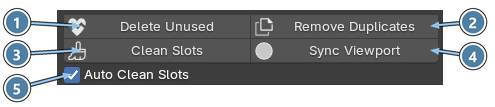
Cleanup tools remove materials and slots you no longer need. They are the buttons right under the material list, between Create and the Textures section. See the Interface Overview.
- Delete Unused. Deletes materials that are not used anywhere. Protected (locked) materials are kept.
- Remove Duplicates. Finds sets of identical materials, keeps one of each set, switches every object to it and removes the copies. If one copy is locked, that copy is the one kept. Locked and read-only materials are never removed.
- Clean Slots. Removes unused material slots from the selected mesh objects, or from the whole scene when nothing is selected.
- Sync Viewport. Updates the material's Solid View color, metallic and roughness to match its shader.
- Auto Clean Slots. When this is on, unused material slots are removed automatically as you work, so you don't have to click Clean Slots yourself.
Protect a material
Click the lock icon in the material row to keep a material safe from Delete Unused. Among duplicates, Remove Duplicates keeps the locked one. See Material List.
Note
Sync Viewport is dimmed when the material is linked from another file or when its shader has no compatible Color, Roughness or Metallic input.
All cleanup actions can be undone with Ctrl+Z.