Material Library
The Material Library is your personal collection of materials. Save a material once and use it in any blend file. The library is stored on disk, outside your projects, and does not use Blender Asset Libraries.
The add-on comes with ready presets in five categories: Basic, Glass, Metal, Plastic and Rubber.
The Material Library section is below Batch Rename. See the Interface Overview. When expanded, it has two parts.
- Library tools. Search, sorting, categories and display mode.
- Presets. Your saved materials with their buttons.
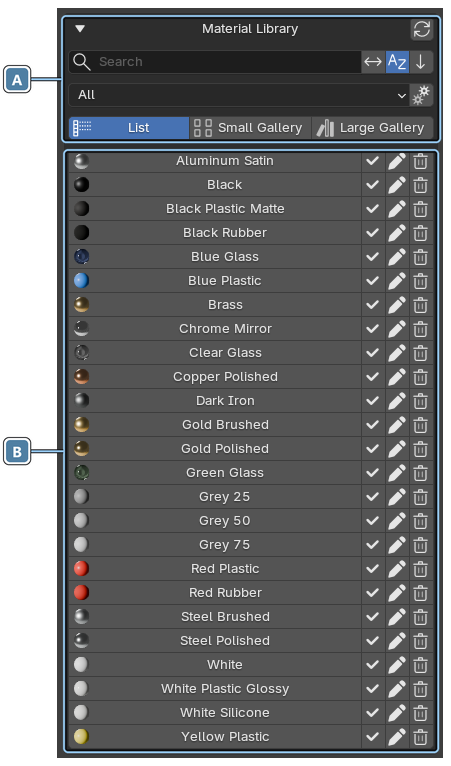
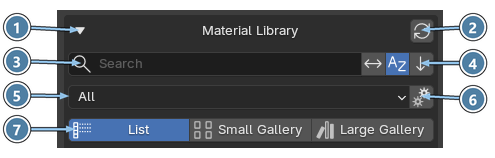
ALibrary tools
- Section header. Click to expand or collapse the library.
- Refresh Preset Library. Reloads presets from the library folder. Use it after you copy presets into the folder in File Explorer or Finder.
- Name filter. Shows only presets whose names contain the text. Upper and lower case do not matter. Use
*for any text in between, for examplesteel*brushed. - Invert filter, Sort alphabetically and Reverse sort. The three buttons right of the search field. They work the same way as in the Material List. When sorting is off, presets keep the saved library order.
- Category. Shows presets from one category only, or from all categories.
- Manage Categories. Add, rename or delete categories.
- Display mode. List, Small Gallery or Large Gallery.
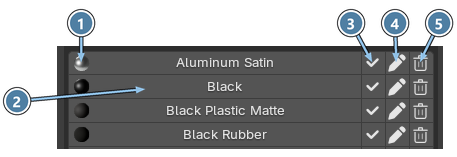
BPresets
- Preview. A small render of the preset.
- Name. Click to show a larger preview. Hover over it to see the preset category.
- Assign Preset. Loads the preset and assigns it to the selected objects, or to the selected faces in Edit Mode.
- Edit Preset. Renames the preset or moves it to another category.
- Delete Preset. Deletes the preset from the library.
In Small Gallery and Large Gallery mode each preset is shown as a big preview with the same three buttons under it.
Save a material
- Select a material in the Material List.
- Click Save Material under the list.
- Enter a name, choose a category and confirm.
The preset is saved with a preview image. The Pack Textures option in the save dialog is on by default, so the textures the material uses are stored inside the preset. Turn it off to keep links to the original texture files instead.
External dependencies
If some textures or other files cannot be included, Material Manager tells you which ones. You can still save the preset, but it will link to these files at their current location.
Categories
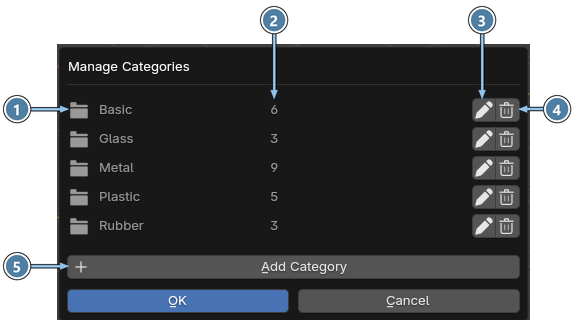
Click the Manage Categories button (gear icon) next to the category menu.
- Category. One row for each category.
- Preset count. How many presets the category contains.
- Rename Category. Renames the category and updates all presets inside it.
- Delete Category. Deletes the category. If it still contains presets, you choose another category to move them to.
- Add Category. Creates a new category.
Library folder
By default the library is stored in the extension's user data folder. It is kept when you update the add-on, but Blender deletes it when you uninstall the add-on.
To keep your materials safe, choose your own folder in the Preferences. It can be any folder on your computer, a shared network folder or a cloud drive. Your presets are not moved to the new folder automatically. Copy them there yourself in File Explorer or Finder.
Convert Library
If you used an older version of the add-on, the panel may show a Convert Library... button. It converts the library to the new format. Your materials are kept. Only the way the library is organized changes.